How to Set Up Your Steam Frame: The Settings Worth Getting Right on Day One
Valve's first Steam Frame purchase emails are landing today. Here is how to pair the wireless adapter, set refresh rate and resolution, and tune foveated streaming.
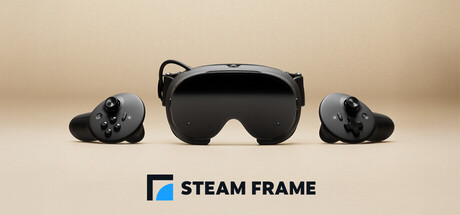
Valve's first Steam Frame purchase emails are going out today, which means a wave of reserved headsets are about to land on doorsteps with almost nothing configured. The $1,059 256GB and $1,299 1TB kits both ship with the Steam Frame Controllers, a Wi-Fi 6E wireless adapter for streaming from a PC, and a copy of Half-Life: Alyx, but the headset arrives close to its factory defaults. Getting it comfortable, fast and quiet takes a handful of menu visits most people will skip past. Here is what to change first.
Powering On, Updating and Signing In
Before anything else, check the charger. Steam Frame doesn't ship with a power adapter in the box, and Valve is explicit that the headset needs a supply rated for at least 27W, with 45W recommended for reasonable charge times. A Steam Deck charger works, as does any 45W-or-higher USB-C PD adapter already sitting in a drawer; Valve also sells its own 45W unit separately for $29 if neither is on hand.
With power connected, press the headset's power button and follow the in-headset prompts through the initial system update before doing anything else, since Steam Frame runs SteamOS 3 on a Snapdragon 8 Series chip, as detailed on the Steam Frame product page, and the out-of-box software is rarely the shipping build. Once that finishes and the headset reboots, sign into the Steam account the reservation was made with. That account is what unlocks standalone downloads and pairs the headset for streaming.
Pairing the Wireless Adapter for PC Streaming
Steam Frame's real trick is treating a Steam library on a nearby PC and over 100 games already Standalone Verified for the headset itself as two halves of the same library, and setting up the streaming half takes a few extra steps. Plug the included Wi-Fi 6E adapter into a USB-3 port on the streaming PC, launch SteamVR there, and accept the driver installation prompt it displays. Back in the headset, select Pair and enter the code SteamVR shows using the on-headset virtual keyboard. Once paired, the PC's name appears in the Steam menu inside the headset; selecting it opens a wireless streaming session without touching a cable. Valve's own setup walkthrough for developers covers the same pairing flow in more detail for anyone troubleshooting a stuck connection.
Anyone setting this up somewhere with a lot of other Steam Frame owners nearby, like a dorm, an office or a launch-day meetup, should also open Steam Settings, then System, then Hostname, and give the headset a name that won't collide with everyone else's default one on the same network.
Opting Into the Beta Channels Where Fixes Land First
Steam Frame is new enough hardware that Valve is still shipping fixes faster than its normal release cadence, and three separate settings control how quickly those fixes reach a given headset and PC. On the headset itself, Steam Settings, then System, then System Update Channel offers a Beta option alongside the default stable channel. On the streaming PC, Steam Settings, then Interface, then Client Beta Participation does the same for the desktop Steam client, and SteamVR has its own toggle under the app's Properties, then Betas, then Beta Participation in the PC library. None of these are required to use the headset, and the stable channel is the safer choice for anyone who just wants Half-Life: Alyx to work on day one, but anyone hitting a tracking glitch or a streaming stutter should check whether the beta channel already has a fix before assuming the hardware is at fault.
Dialing In Resolution, Refresh Rate and Frame Throttling
Steam Frame's two 2160 x 2160 LCD panels support refresh rates from 72Hz up to an experimental 144Hz, and individual games can suggest their own defaults for resolution and refresh rate through a preferences file bundled with the game. Those suggestions aren't fixed. Open VR Settings, then Video, then Per-Application Video Settings, and every game exposes its own resolution and minimum refresh rate sliders alongside a Reset to Default button that snaps back to whatever the developer recommended, a system Valve documents in full under its VR preferences guidelines for developers.
- Resolution defaults to 1728 x 1728 unless a game asks for more, up to the panel's native 2160 x 2160.
- Refresh rate defaults to 72Hz unless a title requests higher; smoother-feeling games often suggest 90Hz.
- A frame-throttling option can cap a game to half its target rate, for example locking a 90Hz game to 45 FPS, which is worth toggling on for battery life during long standalone sessions rather than PC-streamed ones.
- Motion smoothing can be forced off, forced on, or left on the global Video setting's default per game.
Pushing every game to 144Hz and full native resolution sounds appealing but drains the battery and heats the headset far faster than most games need; matching the setting to what a game actually asks for is the more sustainable default.
Foveated Streaming, and Why It's Worth Leaving On
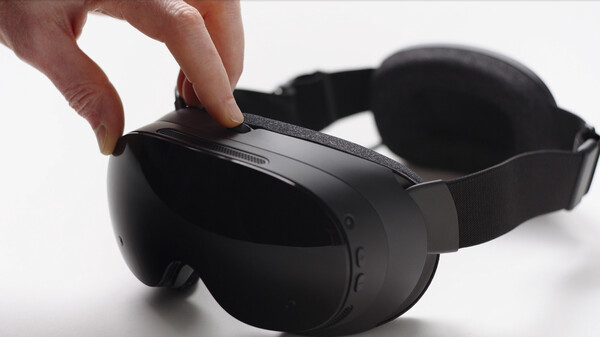
The headline software feature at launch is Foveated Streaming, which uses the headset's own low-latency eye tracking to send the sharpest pixels only to wherever the player is actually looking. Valve says the technique typically delivers more than a 10x improvement in effective image quality and bandwidth during a streamed session, and it runs automatically across the entire VR library without a per-game setting to hunt down. For anyone streaming from a PC over Wi-Fi rather than playing standalone, this is the setting doing the most work behind the scenes, and there's little reason to disable it.
IPD, Comfort and a Few Settings Worth Checking First
Fit affects image clarity as much as any software slider does. Steam Frame's lenses need the interpupillary distance, or IPD, adjusted to match each wearer's eyes before anything looks properly sharp, and it's worth revisiting after the first few sessions rather than trusting a one-time guess. The headset's Ergonomic Accessories Kit, sold separately, swaps in a different strap and face gasket for glasses wearers or longer sessions, but the stock strap and light blocker are enough to get playing on day one. Worth noting for anyone used to a rechargeable headset: the Steam Frame Controllers run on a single AA battery each rather than a built-in cell, with Valve rating a battery at roughly 40 hours of play and putting the compartment behind a door that opens without tools, so a spare pack is a better first purchase than a second charger.
It's also worth knowing that Steam Frame runs two different kinds of content: streamed PC titles from a Windows or Linux library, and standalone SteamVR or flat-screen games installed directly on the headset's own ARM64 or Android-based software, including the more than 100 titles Valve counts as Standalone Verified at launch. Which mode a game uses isn't always obvious from the store page, so checking before assuming a favorite title needs the PC running saves a wasted trip back to the settings menu. None of these changes take more than a few minutes, but they're the difference between a headset that feels tuned to the person wearing it and one still running on Valve's best guess.
Official links
Lena tests the hardware that games run on, from handheld thermals to controller latency. If a spec sheet is doing something suspicious, she has already opened the device.