How to Turn On Dragon's Dogma 2's New FSR 3 and DLSS 4.5 Frame Generation
Title Update 4.0 adds FSR 3 and DLSS 4.5 Multi Frame Generation to Dragon's Dogma 2 on PC. Here's how to enable them, and why Steam Deck still can't run the game well.
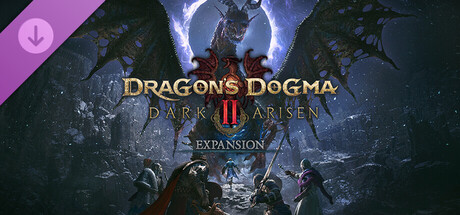
Capcom shipped Title Update 4.0 for Dragon's Dogma 2 on October 9, the same day the paid Dark Arisen expansion went live. The update is free for every owner of the base game, whether or not you buy the expansion, and Capcom's own release notes describe it as adding "a bevy of features and improvements to the game," headlined by a new Hard Mode, a way to restart with existing save data intact, and PC-specific upscaling support that changes how the open-world RPG should actually be configured on your rig.
The two additions worth your attention if you care about frame rate rather than difficulty sliders are FSR 3 Frame Generation and an upgrade to DLSS 4.5 with Dynamic Multi Frame Generation. Here's what they do, how to turn them on, and which settings actually make sense for your hardware, including the handhelds that still can't run this game comfortably.
What Title Update 4.0 Changed on PC
Capcom's patch notes confirm Dragon's Dogma 2 now supports FSR 3 Frame Generation and DLSS 4.5 Dynamic Multi Frame Generation on Steam. Both options live in the Graphics tab of the in-game Options menu, alongside the existing resolution scaling and the "Prioritize Performance" versus "Prioritize Image Quality" toggle that's been in the game since launch. Neither feature requires the Dark Arisen expansion; they apply to the base game engine, so anyone still running the original 2024 release gets the same toggles after updating.
This matters because Dragon's Dogma 2 has never been an easy game to run at a steady frame rate, even on capable hardware, thanks to its dense crowds and full day-night cycle simulating dozens of NPCs and pawns at once. Frame generation doesn't fix CPU-bound slowdowns in cities, but it does make GPU-bound outdoor and combat scenes noticeably smoother once you've dialed in the base settings below.
How to Turn On FSR 3 Frame Generation
FSR 3 Frame Generation is AMD's technology, but it isn't locked to AMD graphics cards; it runs on Nvidia and Intel GPUs too, which makes it the fallback option if you're not on a recent RTX card. To enable it:
- Open the pause menu and go to Options, then the Graphics tab.
- Find the Frame Generation section and switch it from Off to FSR 3.
- Leave Resolution Scaling or FSR Super Resolution enabled underneath it if you also want upscaling rather than frame generation alone; the two work together but are separate toggles.
- Set "Prioritize Performance" under Graphics Quality if you're on a mid-range GPU, since frame generation works best when the game is already holding a reasonably stable base frame rate before it starts interpolating extra ones.
Frame generation always costs you some input latency in exchange for a smoother-looking image, so it's best suited to exploration and dialogue-heavy sections rather than precise combat timing, even though Dragon's Dogma 2 isn't a twitch-reflex game in the way a competitive shooter is.
DLSS 4.5 and Dynamic Multi Frame Generation Explained
On Nvidia hardware, Title Update 4.0 moves DLSS Super Resolution up to version 4.5 and adds Dynamic Multi Frame Generation support to DLSS Frame Generation. Multi Frame Generation can insert more than one interpolated frame between each rendered frame rather than just one, which is the same technology Nvidia introduced for RTX 50-series cards; the "dynamic" part means the game adjusts how many generated frames it inserts based on your current performance rather than using a fixed multiplier throughout.
The other change worth knowing about is that DLSS Frame Generation can now run even when DLSS Super Resolution is turned off. Previously the two were bundled, which meant you had to accept DLSS's upscaling if you wanted its frame generation. Now you can run the game at native resolution with sharper, un-upscaled visuals and still add frame generation on top, or mix and match depending on whether you're more sensitive to a soft image or a lower frame count.
Recommended Settings by Hardware Tier
Capcom's official Steam requirements still list an Intel Core i5-8500 or Ryzen 5 3500 with a GeForce GTX 1660 or Radeon RX 5500 XT (8GB VRAM) as the minimum spec, targeting 1080p with an upscaler at 45-60fps when Graphics Quality is set to Prioritize Performance. The recommended tier steps up to an i7-10700 or Ryzen 5 3600X paired with an RTX 2070 Super or RX 6600 XT, aimed at a steadier 60fps at 1080p under the same Prioritize Performance setting. Ray tracing specifically requires an RTX 2080 Ti or RX 6800 or better; Capcom has never positioned ray tracing as viable below that tier, update or not.
If you're at or near the minimum spec, turn on FSR 3 Frame Generation first since it's vendor-agnostic, keep Graphics Quality on Prioritize Performance, and leave ray tracing off entirely. If you're on an RTX 30-series or 40-series card at the recommended tier or above, DLSS 4.5 with Dynamic Multi Frame Generation at native or near-native resolution is the better combination, since you get a cleaner image than FSR's upscaling while still gaining the frame rate boost.
Why Steam Deck Still Can't Run It Well
If you were hoping Title Update 4.0's new upscaling options would make Dragon's Dogma 2 viable on Valve's handheld, they haven't. Checking Valve's own Steam Deck compatibility report for the game today still returns a rating of Unsupported, with the specific reason listed as unsupported graphics performance, the same verdict the game has carried since launch. FSR 3 Frame Generation and DLSS are built for discrete or high-end integrated GPUs pushing a baseline frame rate upward; they aren't a fix for a game that struggles to hold a playable frame rate on Deck-class hardware in the first place.
Windows handhelds like the ROG Ally or Legion Go aren't bound by Valve's Deck Verified program and can run the game if you're willing to accept lower settings, since they're running the same Windows and driver stack as a laptop. FSR 3 Frame Generation is worth enabling there too, paired with Prioritize Performance and a lowered resolution scale, but expect to manage your expectations on battery life and fan noise rather than treating it as a comfortable portable experience. For now, a dedicated gaming laptop or desktop remains the only way to get the most out of what Title Update 4.0 added.
Official links
Lena tests the hardware that games run on, from handheld thermals to controller latency. If a spec sheet is doing something suspicious, she has already opened the device.