How to Turn On Steam's New Big Art Mode, Screensavers and Calendar
Valve's October updates add a Big Picture home screen remix, custom screensavers and a newly graduated Personal Calendar. Here's how to set each one up.
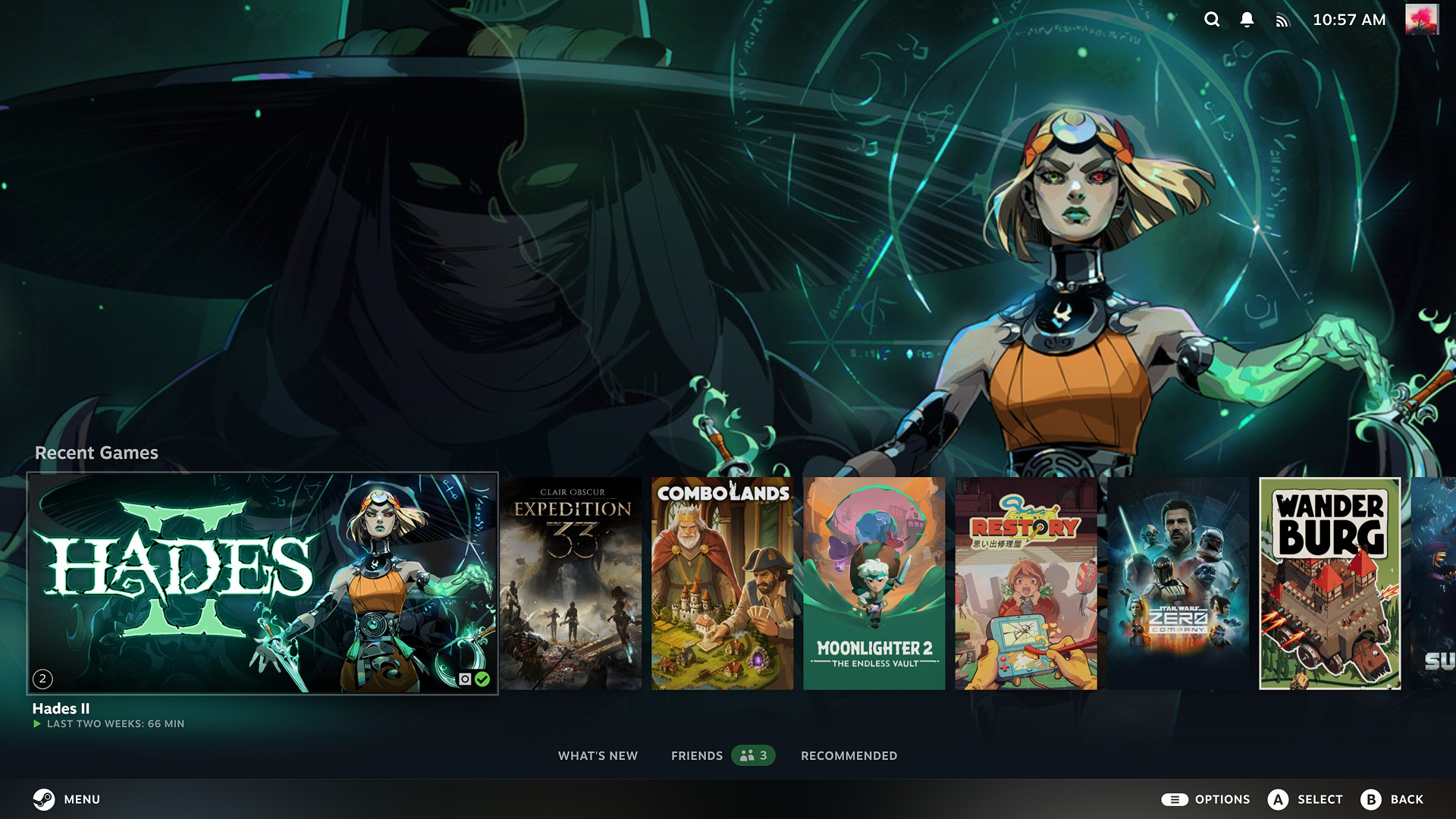
Valve has spent October reworking parts of Steam's Big Picture Mode that handheld owners touch every time they turn their device on. A October 13 client update added a new home screen layout called Big Art Mode, a Big Picture screensaver system that supports custom slideshows, and a Personal Calendar card on the home screen's Recommended tab. Then, on October 23, that Personal Calendar feature formally graduated out of Steam Labs into a permanent part of the Steam Store. None of this requires a beta opt-in, and all of it is already live on Steam Deck, SteamOS handhelds and desktop Big Picture Mode.
What Just Shipped in Big Picture Mode
The October 13 update's headline change is cosmetic but immediately noticeable: a second home-screen layout that leans harder on cover art and hero images than the existing grid. Valve paired it with a dedicated screensaver system, something Big Picture Mode never had before, and a Personal Calendar entry that surfaces recommended games directly from the home screen's Recommended tab rather than making players dig for it. Together, the changes are aimed squarely at the "couch and handheld" use case, where Big Picture Mode spends most of its time just sitting idle between games.
A smaller follow-up update on October 21 cleaned up a handful of bugs that matter specifically to Deck and Linux players, including a Remote Play streaming memory leak and a Vulkan game freeze after alt-tabbing, both covered below.

How to Switch On Big Art Mode
Big Art Mode is opt-in, not a replacement for the existing home screen, so it has to be turned on manually:
- Open Big Picture Mode (this is the default interface on Steam Deck, and the Steam client ships it as an option on desktop too).
- Go to Settings and select Home.
- Enable the Big Art Mode option for the home screen layout.
The layout change leans on each game's library hero art and capsule images, so titles with incomplete artwork will look sparser than ones with a full set of Steam assets. Switching back to the standard layout uses the same toggle, so there's no risk in trying it for a week and reverting if the extra visual noise isn't to your taste.
Setting Up (or Replacing) Your Screensaver
The new screensaver system lives under Settings > Customization, and Valve shipped two built-in options alongside it. The default is a game art slideshow that can be configured to pull from artwork for your recently played games and your own in-game screenshots, so it effectively turns idle time into a rotating highlight reel of what you've been playing. The second option is a retro-styled bouncing logo screensaver, closer in spirit to the DVD-logo meme than anything Steam has shipped before.
Power users can go further: Big Picture Mode can load fully custom screensavers in the same way it already handles custom startup movies. Drop a compatible file into the config\uioverrides\screensavers folder inside your Steam install directory (C:\Program Files (x86)\Steam on Windows, or ~/.steam/root on Linux and SteamOS, including Steam Deck), and it will show up as a selectable option. Valve's own bouncing logo screensaver, which lives in the steamui\screensavers directory, is meant to be used as a reference for building your own.
Valve also added a setting to disable the screensaver entirely while a game is running, plus logic that delays the screensaver or screen dimming whenever the Steam Store, a web browser, or another app inside Big Picture Mode is actively playing video — useful if you've been annoyed by the screen going dark mid-trailer.

The Personal Calendar Just Graduated From Steam Labs
The Personal Calendar card that appeared on the home screen's Recommended tab on October 13 turned out to be a preview of a bigger move: on October 23, Valve officially graduated the Personal Calendar out of Steam Labs and made it a permanent feature of the Steam Store, reachable from the store homepage or directly at store.steampowered.com/personalcalendar.
The calendar shows an eight-week horizon of recently released and upcoming games, personalized by comparing your own playtime against players with similar habits, then surfacing what those players have wishlisted or been playing. Valve says the system weights heavily played games far more than anything you've only tried for a few minutes, and the underlying recommendation model retrains daily. According to Valve, players click on over 2,000 different games in the Personal Calendar in an average 24-hour period, which the company points to as evidence the feature is surfacing more than just the obvious blockbusters.
The feature first launched as a Steam Labs experiment in October 2025. Over eleven months, Valve added support for developers to flag planned Early Access-to-1.0 graduation dates, improved filtering for wishlisted and Early Access titles, and tuned the layout to work consistently across desktop, mobile and SteamOS devices like the Deck.
Smaller Fixes Worth Knowing About
The October 21 client update was a short, fix-focused patch, but two items are directly relevant to Deck and handheld owners. On the Remote Play side, Valve fixed a memory leak that occurred when streaming H.264 video over NVENC from a Windows host with unlimited bandwidth enabled — a problem that could degrade long streaming sessions to a Deck or another handheld over time. On Linux, Valve fixed a bug causing Vulkan games to hang after alt-tabbing out and back in, an issue that affected SteamOS devices running in desktop mode as well as traditional Linux installs.
Neither fix requires any action beyond letting the Steam client update itself, which happens automatically the next time Steam restarts.
Why It Matters for Handheld Players
None of these changes touch performance or battery life directly, but they target the part of the Steam Deck experience players actually look at the most: the home screen they land on every time they wake the device up. Big Art Mode and the screensaver system are both reversible, low-risk things to try during an idle afternoon, and the Personal Calendar is worth a look even for players who already have a backlog, since it's built specifically to surface games outside the usual front-page blockbusters. Combined with the quieter Remote Play and Linux fixes, it's a reminder that Valve is still actively iterating on Big Picture Mode as the primary interface for an entire category of hardware built around it.
Official links
- October 13 Steam Client Update patch notessteamcommunity.com
- October 21 Steam Client Update patch notessteamcommunity.com
- Personal Calendar's Steam Labs graduation announcementsteamcommunity.com
- Steam's Personal Calendar pagestore.steampowered.com
- Big Picture Mode overviewstore.steampowered.com
- Steam Deck store pagestore.steampowered.com
Lena tests the hardware that games run on, from handheld thermals to controller latency. If a spec sheet is doing something suspicious, she has already opened the device.