How to turn on VRR for Nintendo Switch 2 in TV mode after update 23.0.0
Switch 2 update 23.0.0 adds VRR in TV mode, but only after a separate dock update. Here are Nintendo's exact steps and what it has not documented.
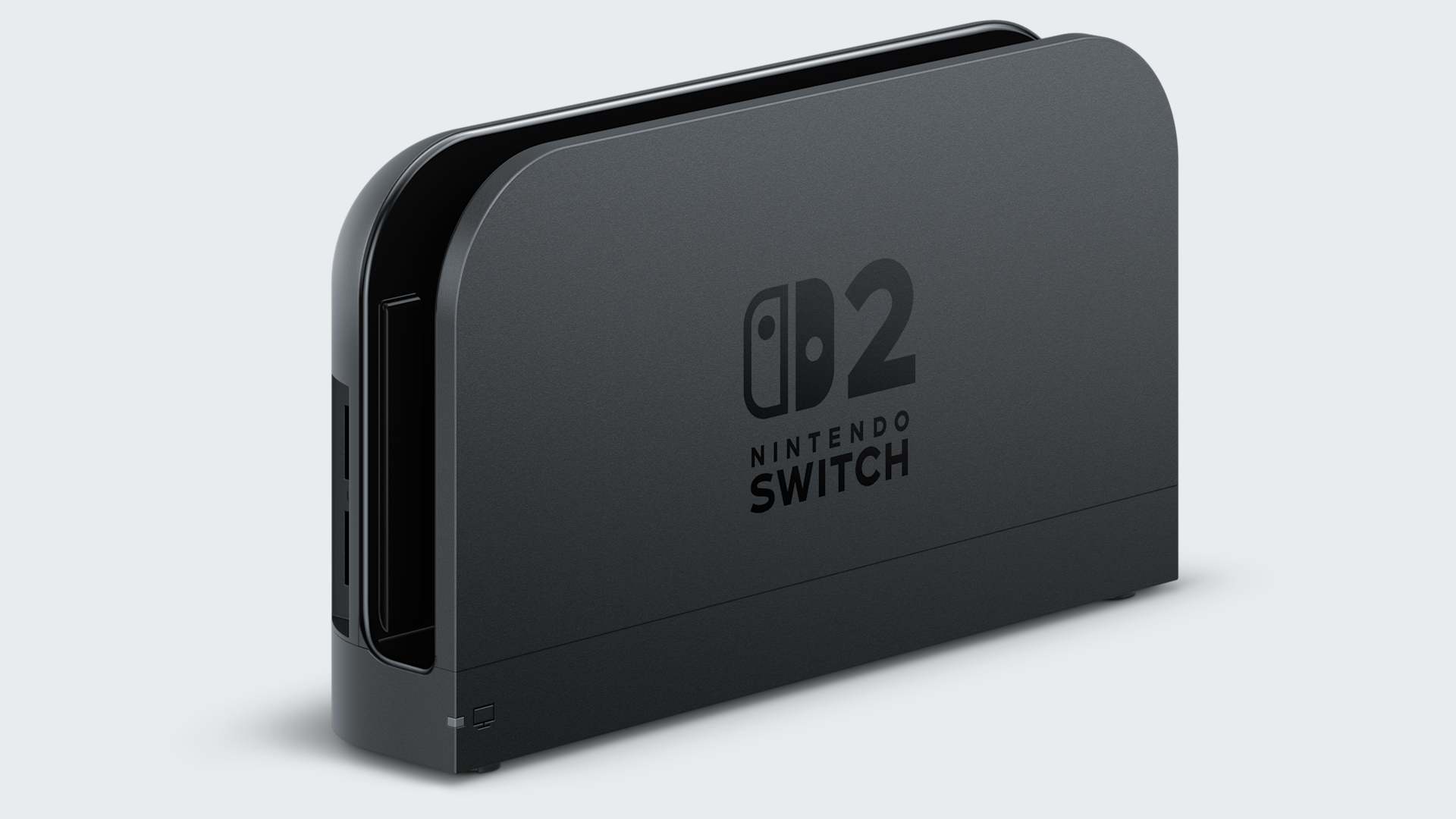
Nintendo Switch 2 system update 23.0.0, released on September 9 in the Americas, adds variable refresh rate (VRR) output in TV mode. It does not work out of the box: Nintendo's release notes say a separate Nintendo Switch 2 dock update is required, and the new toggle sits in a settings menu most players never open. This guide covers the order to do things in, the exact menu names Nintendo uses, and the parts Nintendo has not documented.
VRR lets the TV refresh in step with the frames the console actually delivers, instead of holding a fixed rate. In Nintendo's words, when both the software and the TV support it, video is output at a refresh rate that matches the game's processing. The console's own 7.9-inch screen is already listed on Nintendo's official tech specs with "VRR up to 120 Hz"; 23.0.0 is what brings the feature to a television.
- System update: Ver. 23.0.0, dated September 9, 2026 by Nintendo of America and September 10, 2026 by Nintendo UK
- Also required: dock firmware update, installed from the console
- Needs: a VRR-capable TV and software that supports VRR
- Cost: free
Step 1: Install system update 23.0.0
The dock update is delivered through the console, so the console has to be current first. Nintendo says most consoles download system updates automatically when online, but you can force a check.
- Select System Settings on the HOME Menu.
- Scroll down and select System.
- Select System Update. The console checks for an update and starts the download if one is available.
If the update will not install, Nintendo's advice is to restart the console (hold the POWER Button for three seconds, then Power Options > Restart) and try again. The full change list is on Nintendo's System Update Information for Nintendo Switch 2 page.
Step 2: Update the dock firmware
This is the step most people will miss. According to Nintendo's dock firmware support article, you need the console, the Nintendo Switch 2 dock and an internet connection, and the console must be sitting in the dock for the whole process.
- Put the console in the dock.
- Open System Settings, then System.
- Select Dock Update.
- Select Begin Update. If a pop-up says the dock is already up to date, select OK; there is nothing to install.
If the update stops before it finishes, Nintendo says to run the same step again. Nintendo UK's support pages identify the official dock as model BEE-005. Nintendo's instructions only cover its own dock and it has not said whether third-party docks can output VRR, so treat them as unsupported for this feature.
Step 3: Turn on VRR Output
With the console and dock both updated, the new setting appears under Display. Nintendo's display settings article lists it as follows.
- From the HOME Menu, select System Settings.
- Scroll down the left-hand menu and select Display.
- Open VRR Settings and toggle on VRR Output.
Two neighbouring options on the same screen are worth setting at the same time:
- Auto Low-Latency Mode switches a compatible TV into its game mode automatically.
- 120 Hz Output allows a higher refresh rate when the TV and software support it. Nintendo states it only works at 1080p and 1440p, and the spec sheet caps 4K output at 60 fps. If your TV Resolution is set to 2160p (4K), you will not get 120 Hz.
Update 23.0.0 also renamed "Dock Output Information" to Video Output Information, which now includes details about the signals the connected TV can display. Nintendo does not list exactly which fields appear there, so use it as a check on what your TV is reporting rather than a guaranteed VRR indicator.
Step 4: Set up the TV and test it
VRR also has to be available on the TV's HDMI input. Where that setting lives depends on the manufacturer, and Nintendo's support pages direct TV-side questions to the TV maker. Nintendo does not publish a minimum HDMI version for VRR, but its troubleshooting pages list an Ultra High Speed HDMI cable as the cable to use with the dock.
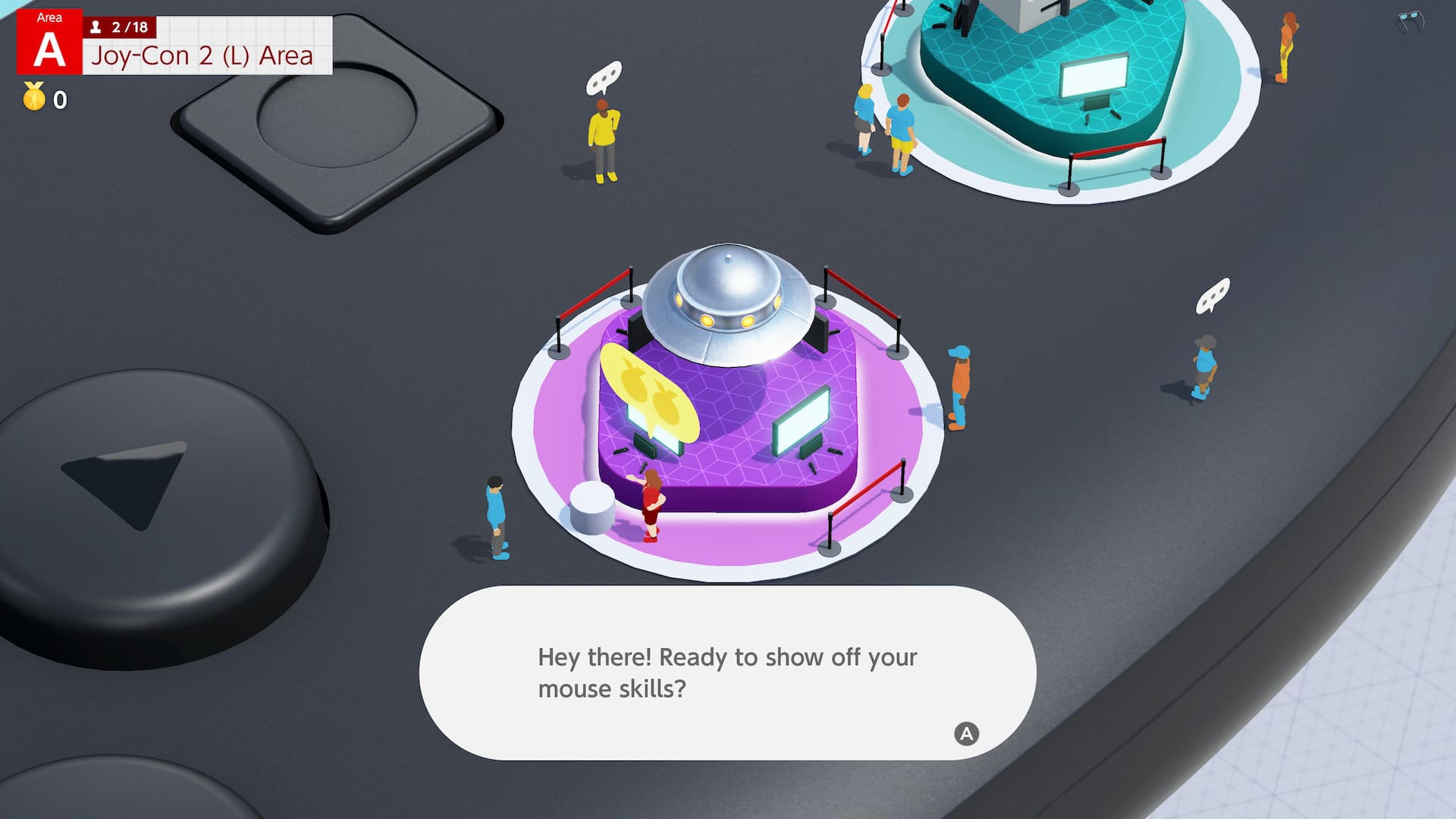
Nintendo has not published a list of Switch 2 games that support VRR in TV mode, and none of the recent first-party patch notes we checked mention it, including Mario Kart World's Ver. 1.8.0. The one documented test is in Nintendo Switch 2 Welcome Tour. Its Ver. 1.1.0 update, also released September 9, makes the VRR Slider tech demo in the Joy-Con 2 (L) Inner Area playable in TV mode, provided the TV supports VRR and the dock is updated.
“When both the software and TV support it, video will be output at a refresh rate that matches the game’s processing.”Nintendo, Nintendo Switch 2 system update Ver. 23.0.0 release notes, 9 September 2026
If the picture drops out
A blank TV after docking is the most likely problem while you experiment. Nintendo's no video output article includes these checks:
- Power the dock with the Nintendo Switch 2 AC adapter (model NGN-01) or another adapter rated at least 54W. The original Switch adapter cannot power the dock.
- Use an Ultra High Speed HDMI cable, plugged straight into the TV. Remove splitters or other devices in between while testing.
- Try turning VRR off in the TV's own settings. Nintendo lists this as a fix for no video output.
If you run audio through an AV receiver or soundbar, note that Nintendo's troubleshooting steps say to connect the dock directly to the TV while testing. Nintendo has not said whether VRR passes through receivers.
Other changes in 23.0.0 worth knowing
- System Transfer to Nintendo Switch 2 is now under System Settings > System, for moving from one Switch 2 to another.
- TV Sound settings are saved and applied automatically on up to 8 TVs.
- Handheld Mode Boost can now be toggled from Quick Settings.
- Virtual Game Cards on the HOME Menu gains a Settings option. If a virtual card cannot be ejected from a console that is offline, the system offers to start the game with an online license, which only the purchaser can use.
- Play activity now combines play time for the same software across multiple systems, counting from the update onward.
A new Nintendo Switch 2 system update is available now, adding the option to share a Mii via a QR Code, optional music when creating and editing your Mii, and more. Find out more:
— Nintendo of America (@NintendoAmerica) on X
Official links
- System Update Information for Nintendo Switch 2en-americas-support.nintendo.com
- How to Update the Nintendo Switch 2 Dock Firmwareen-americas-support.nintendo.com
- How to Adjust the Display Settings on Nintendo Switch 2en-americas-support.nintendo.com
- Nintendo Switch 2 Welcome Tour update notesen-americas-support.nintendo.com
- Nintendo Switch 2 tech specsnintendo.com
Lena tests the hardware that games run on, from handheld thermals to controller latency. If a spec sheet is doing something suspicious, she has already opened the device.