How to Turn On NVIDIA App's New Performance Mode for Faster DLSS Frame Generation
NVIDIA's app just added a faster beta frame generation mode, DLSS Overrides for 19 more games, and an AI agent that can tweak your settings.
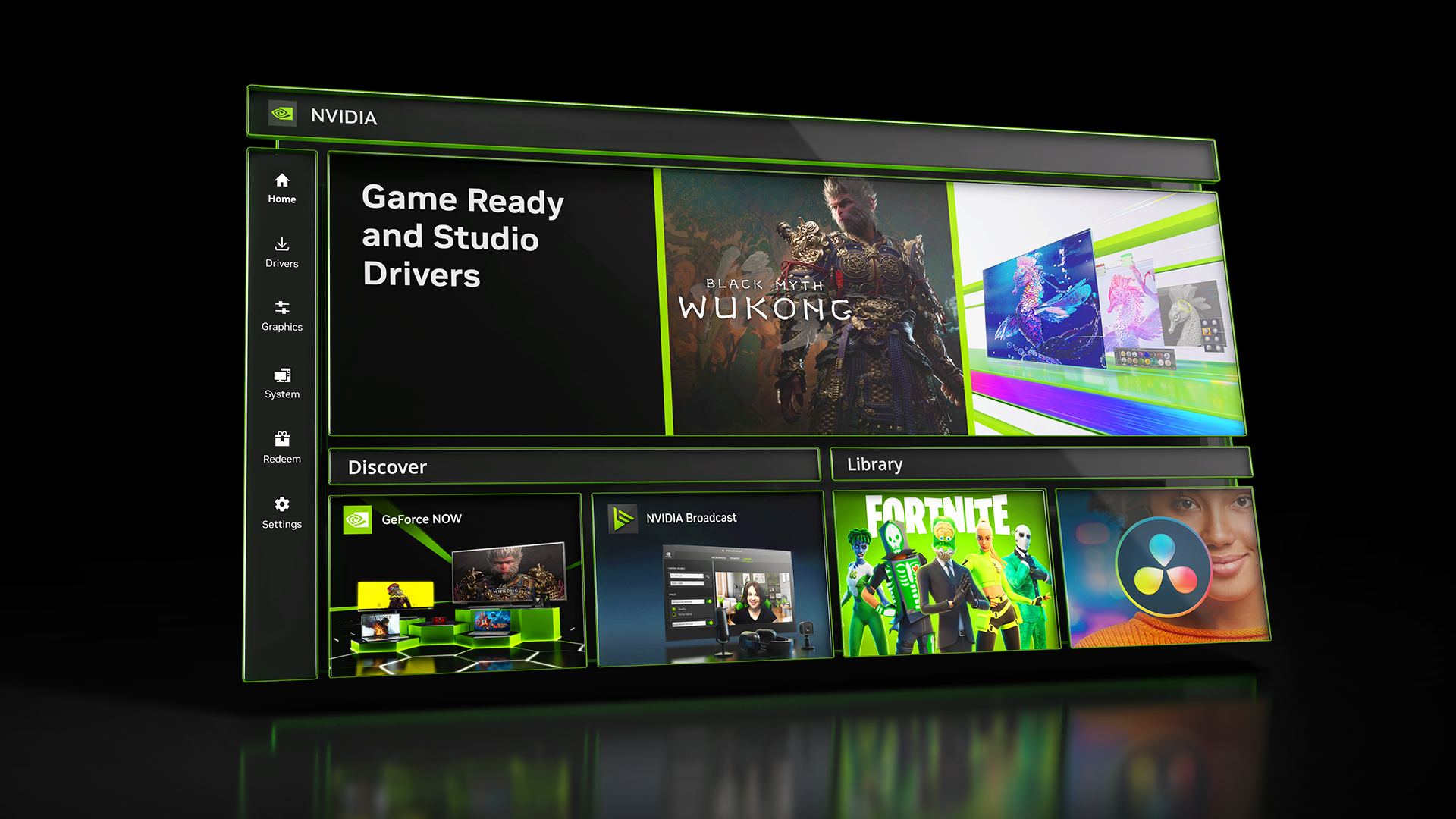
NVIDIA has quietly turned its GeForce companion software into one of the fastest-moving tools on a gaming PC. The latest two builds of the NVIDIA app, versions 11.0.9.565 and 11.0.9.585, add a beta mode that squeezes more frames out of DLSS Frame Generation, a new way for AI assistants to control the app directly, and DLSS Override support for 19 additional games, according to NVIDIA's own release notes. None of it requires a new graphics driver install beyond the one most RTX owners already have, and most of it is a toggle away once you know where to look.
How to turn on the new Performance Mode for DLSS Frame Generation
The headline addition in version 11.0.9.565 is a beta Performance Mode for DLSS Frame Generation. NVIDIA's release notes describe it as a mode that "generates more frames, especially at higher multipliers," which in practice means less GPU work spent per inserted frame when a game is already running Frame Generation at 3x or 4x. The trade-off is a small dip in per-frame image quality compared with the existing model, which NVIDIA still offers as the default.
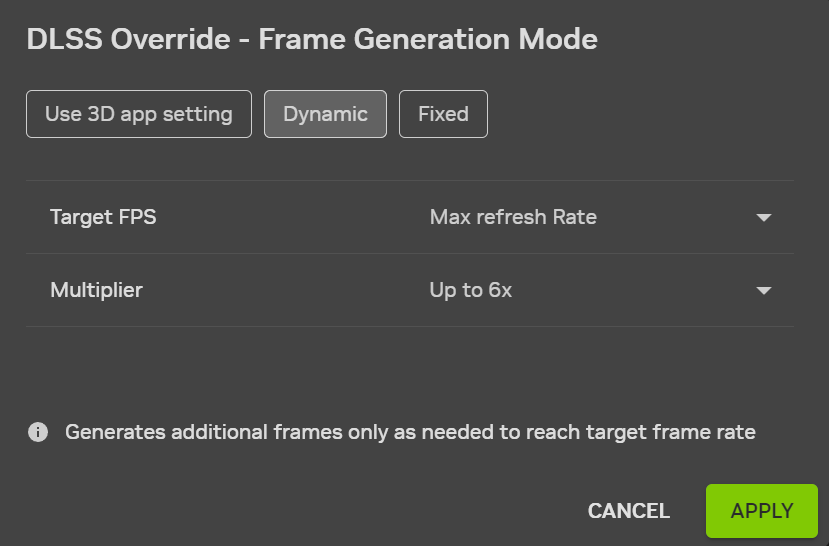
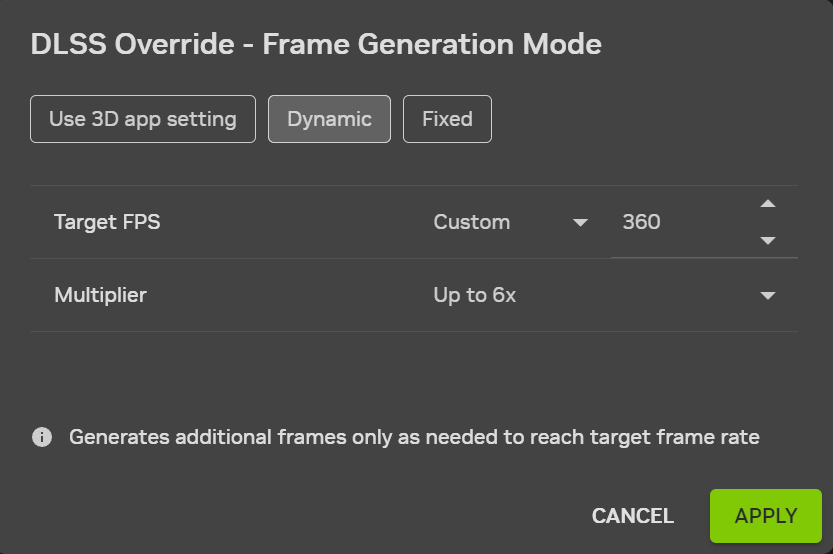
To switch it on, open the NVIDIA app and go to Graphics > Program Settings, pick the game you want to tune, then open Driver Settings. Under DLSS Override - Model Presets, set the Frame Generation entry to Model C. That single setting applies the lighter, faster model to any title using the override; switching it back to the default preset restores the original quality-focused behaviour. Because it's a Model Preset rather than a separate switch, it works alongside the existing DLSS Override - Frame Generation Mode options, including the Dynamic mode that automatically shifts between multipliers to hit a target frame rate.
It's worth treating Model C as a per-game experiment rather than a blanket setting. Titles that are already GPU-bound at high multipliers, where Frame Generation is doing the most work, are where the lighter model earns its keep; in lighter, CPU-bound scenes the difference is far less noticeable, and some players may prefer to leave well-optimised games on the original preset.
Because Performance Mode sits inside the same Model Presets menu as the regular Frame Generation model, switching between the two takes seconds, with no need to relaunch the game or reapply other DLSS Override settings. That makes it easy to A/B test on a per-title basis: apply Model C, play a few minutes of the most demanding section of the game, then switch back to the default preset and compare. Since this is still a beta feature, NVIDIA's own notes don't promise it will behave identically across every GPU generation, so RTX 40 Series owners may see smaller gains than RTX 50 Series owners running higher frame-generation multipliers.
Which games just picked up DLSS Overrides
Version 11.0.9.585 widens the list of games that can take a DLSS Override even without native support from the developer. NVIDIA's release highlights page lists DLSS Override support added for 19 titles in this release:
- Honeycomb: The World Beyond
- WARDOGS
- PUBG: BATTLEGROUNDS
- Aniimo
- 007 First Light
- Active Matter
- Enlisted
- Dragon's Dogma 2
- The Witcher 3: Wild Hunt
- AION 2
- Halloween: The Game
- HOT WHEELS Infinite Rush
- SILENT HILL: Townfall
- CONTROL Resonant
- ACE COMBAT 8: WINGS OF THEVE
- DYNASTY WARRIORS 3: Complete Edition Remastered
- STAR WARS: Galactic Racer
- Gears of War: E-Day
- Clive Barker's Hellraiser: Revival
Six of those same games, plus EA SPORTS FC 27, also gained Optimal Settings support in the same update: AION 2, Aniimo, CONTROL Resonant, EA SPORTS FC 27, Gears of War: E-Day and STAR WARS: Galactic Racer. Optimal Settings uses NVIDIA's own benchmarking data to write recommended graphics and DLSS settings for your specific GPU in one click, rather than leaving players to work through a settings menu manually.
To apply an override on any of these games, the game has to be installed and detected by the app first. Open the three-dot menu in the top corner of the NVIDIA app and hit Refresh if a newly supported title doesn't show an override option yet, then head back into that game's Graphics tab to find the DLSS Override panel.
The list is a useful snapshot of how broadly NVIDIA is now backfilling DLSS support independent of individual developers. Several of these titles, like Gears of War: E-Day, CONTROL Resonant and SILENT HILL: Townfall, don't ship with their own in-game DLSS model selector, so the override is currently the only way to pick a newer Super Resolution or Frame Generation preset without waiting on a patch. Others, like The Witcher 3: Wild Hunt and PUBG: BATTLEGROUNDS, are old enough that a native update adding the latest DLSS models was never guaranteed in the first place.
RTX Spark support and manual memory allocation
The same 11.0.9.565 update adds native support for RTX Spark devices, which NVIDIA says unlocks the full NVIDIA app feature suite at peak performance on that hardware rather than running in a reduced compatibility mode. Alongside it, the app now exposes manual GPU memory allocation, letting users fine-tune how much VRAM is reserved for demanding gaming, creative or AI workloads instead of relying entirely on automatic management.
A new overlay and an AI agent that can change your settings for you
NVIDIA also expanded the in-game overlay's statistics panel in 11.0.9.565, adding CPU Clock, CPU Power and CPU Temperature readouts alongside the existing GPU metrics. That's a small but useful addition for anyone trying to work out whether a stutter is a GPU bottleneck, a CPU one, or a thermal throttle on a cramped handheld or laptop chassis.
More unusual is a new local Model Context Protocol (MCP) server built into the app. NVIDIA describes it as letting a compatible AI agent "see your installed games and apply optimal settings, or enable Shadowplay to record gameplay, all through simple conversation." It's opt-in and sits under Settings > Features > AI Agents and App Connections, where it's switched off by default.
Worth checking before you dig in
Both updates also carry a handful of bug fixes: 11.0.9.565 resolves missing laptop display names in Surround setup, a conflict where installing the app blocked Auto Display Switch, and RTX Video HDR sliders that weren't affecting output, while 11.0.9.585 is listed as stability and security fixes only. Neither update requires reinstalling a GeForce Game Ready driver on its own, though NVIDIA's separate DLSS 4.5 Dynamic Frame Generation features call for driver 595.97 WHQL or newer if you haven't updated recently.
The app updates automatically by default, but if you want to confirm which build you're on, the version number sits under Settings > About. Given how often NVIDIA is shipping new per-game overrides lately, it's a page worth a glance every few weeks for anyone chasing the best settings on a new release.
Official links
Lena tests the hardware that games run on, from handheld thermals to controller latency. If a spec sheet is doing something suspicious, she has already opened the device.