How to Optimize Battlefield 6's PC Settings for Smoother FPS and Sharper Aim
EA's own support guide shows which Battlefield 6 graphics options to lower first, how to dial in field of view and sensitivity, and why DICE skipped DLSS as a crutch.
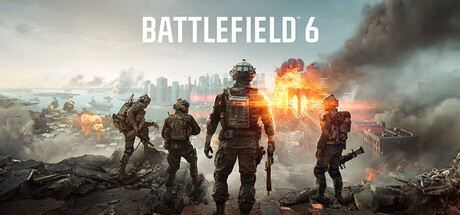
Battlefield 6 has settled into its fifth season, and the question that keeps coming up around Ripple Effect and DICE's own support channels hasn't changed since launch: which menu toggles actually buy back frames without wrecking how the game looks or plays. Electronic Arts has quietly kept its official PC and controller settings guide updated with exactly that advice, and it is worth working through section by section rather than copying a stranger's screenshot of sliders.
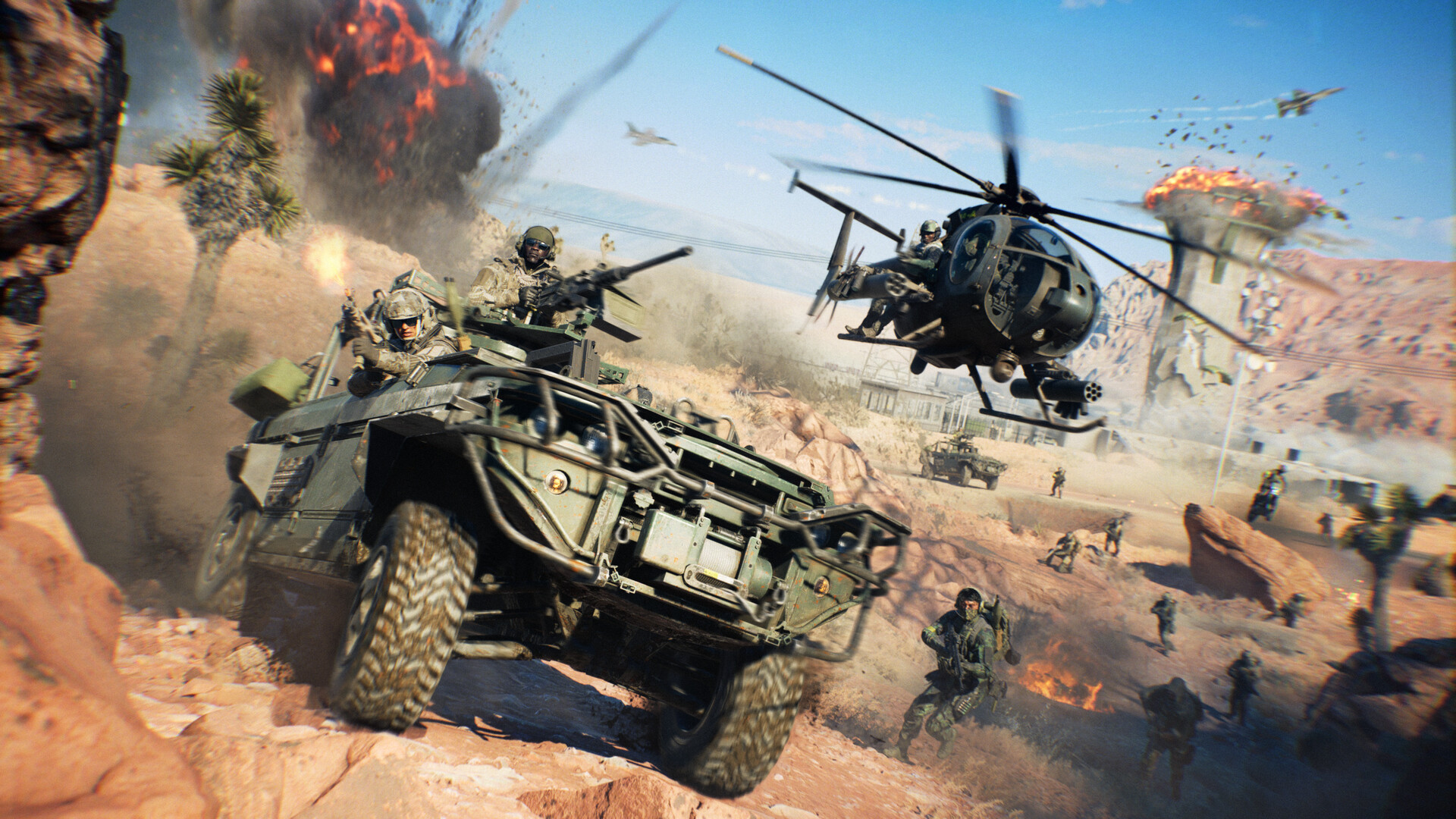
That matters more on a 64-player map than it does in most shooters. Battlefield 6's destructible environments, vehicle combat and long sightlines all lean on the same settings categories that a competitive player wants trimmed for visibility, which means the performance pass below doubles as a clarity pass. None of the steps require third-party tools or config-file edits; everything lives inside the in-game menus EA documents directly.
Start in the Graphics Menu, Not the Advanced Tab
EA's guide points PC players to the Settings cog, then Graphics, where selecting Modify opens the full list of visual options. The support article is blunt about the tradeoff: "How you optimize your settings depends on your PC and how it balances performance with quality. Turning down graphics settings helps your PC maintain a good frames-per-second (FPS)." There is no single ideal preset, because a 1440p ultrawide rig and a budget laptop are chasing different numbers.
The Settings EA Recommends Lowering First
Rather than dragging every slider to its floor, EA's own guidance narrows the first pass to seven options it calls "less noticeable" when dropped to Low:
- Undergrowth Quality
- Effects Quality
- Volumetric Quality
- Lighting Quality
- Local Light & Shadow Quality
- Sun Shadow Quality
- Post Process Quality
If frame rate is still short of the target after that pass, the guide's fallback is simpler still: set everything to Low and work back up from there, re-checking performance after each change rather than guessing at a finished preset.
Camera, Display and HUD Settings Worth a Second Look
The camera settings live further down the same Graphics menu, under Camera Settings. EA frames Field of View as a competitive choice as much as a performance one: a higher FOV shows more of the surrounding battlefield at the cost of making distant enemies smaller on screen, and the guide suggests 110 as a starting point with Weapon Field of View set to Wide. It also recommends trimming World Motion Blur, Weapon Motion Blur and Camera Shake Amount for a clearer view, and turning off Chromatic Aberration, Vignette and Film Grain for the same reason.
Under Display, the guide calls for Vertical Sync off to avoid input lag, plus matching Fullscreen Resolution and Refresh Rate to the monitor actually connected. One option gets an explicit split: EA notes that "some players find it easier to spot enemies in buildings or through water with Screen Space Reflections turned Off," which makes it as much a visibility setting as a performance one.
“Our goal is for everything to be performant without a lot of extra stuff.”Christian Buhl, Technical Director, Ripple Effect
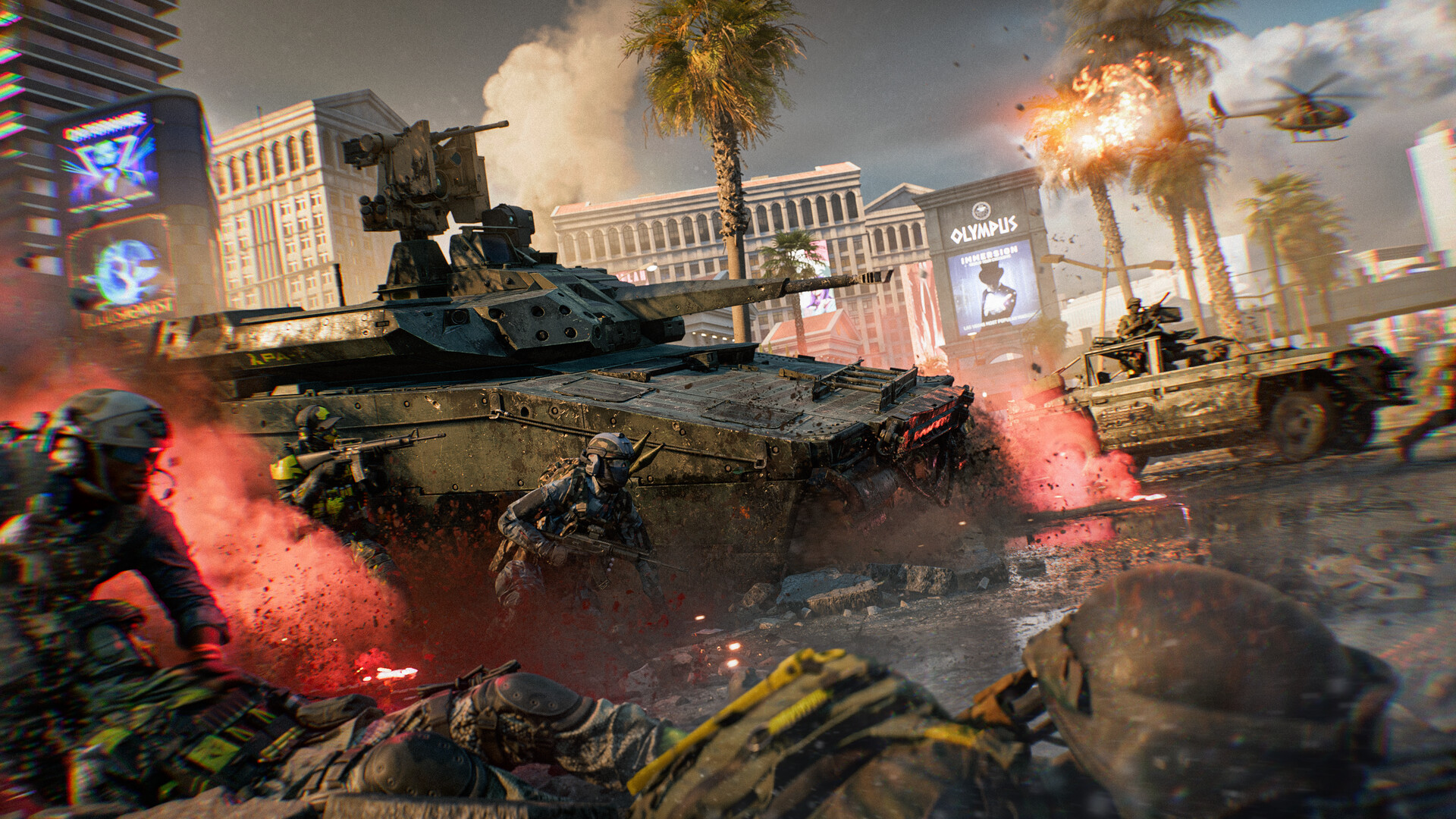
Two more settings under Display and Interface and HUD are easy to miss because they don't look like performance options at all. Toggling Soldier HUD Motion and Vehicle HUD Motion to Off stops the heads-up display from sliding around the screen while a player moves, which the guide frames purely as a readability fix rather than a frame-rate one. Under Icons & Indicators, selecting Modify next to Crosshairs and Indicators opens controls for crosshair and hit-indicator opacity, intensity, thickness and color, letting a player make either element stand out more against Battlefield 6's busy, destructible backdrops.
Why DICE Isn't Leaning on DLSS or Ray Tracing
The absence of ray tracing and the studio's hands-off approach to upscaling as a performance fallback are deliberate design choices, not oversights. Technical director Christian Buhl has been consistent about it in interviews since before launch, and the reasoning matters for anyone tempted to flip on DLSS or FSR purely to hit a frame-rate target rather than to clean up image quality at a high resolution scale. Buhl has said the studio aims to make the game run well on its own merits first, then treat upscaling as an optional extra rather than a requirement for a stable frame rate.
Battlefield 6 also still has no ray tracing and no announced plans to add it, which keeps the game's baseline performance closer to what the settings above can actually influence rather than depending on hardware-specific rendering paths that not every PC in the game's wide hardware range can use.
Dialing In Mouse, Controller and Audio Settings
Settings tuning does not stop at frame rate. EA's guide lists starting points under Mouse & Keyboard of 20 for Infantry Mouse Aim Sensitivity, 178 for Zoom Sensitivity Coefficient, and 20-40 for Vehicle Mouse Aim Sensitivity, with the Firing Range recommended as the place to test changes before trusting them in a live match. Controller players get preset profiles for Soldier, Vehicles, Aircraft, Gunner, Transport and Helicopters, plus custom starting values of 30-40 Infantry Aim Sensitivity, a Field of View of 110 to match the mouse recommendation, and a deadzone set between zero and five for a controller with little or no stick drift.
The Audio menu rounds out the pass, and EA's recommendations there are aimed at information over atmosphere: lowering Music Volume so it doesn't compete with gameplay audio, pushing Sound Effects Volume, Commander VO Volume and UI SFX Volume toward the top of their range "so you don't miss any enemy footsteps, comms, or sound effects," and turning on the Hit Indicator so landed shots are unmistakable. None of it costs a frame, but it closes the same gap the visual settings do: less noise, more usable information.
A Checklist Before Your Next Match
Taken together, EA's own guidance boils down to a short pre-match routine:
- Drop Undergrowth, Effects, Volumetric, Lighting, Shadow and Post Process quality to Low first, then go further only if needed.
- Set Field of View around 110 and turn off Vertical Sync, motion blur and screen filters that only cost frames.
- Toggle Screen Space Reflections off if visibility through water and windows matters more than the reflection itself.
- Test sensitivity changes in the Firing Range before carrying them into a live round.
None of it requires DLSS, FSR or ray tracing to work, which is exactly the point Ripple Effect's technical director has been making about Battlefield 6's performance target all along.
Official links
Lena tests the hardware that games run on, from handheld thermals to controller latency. If a spec sheet is doing something suspicious, she has already opened the device.